

Getting Started
An introduction to the Bamboo dashboard, including how to log in, navigate the interface, and understand the key areas of the platform.
Logging In
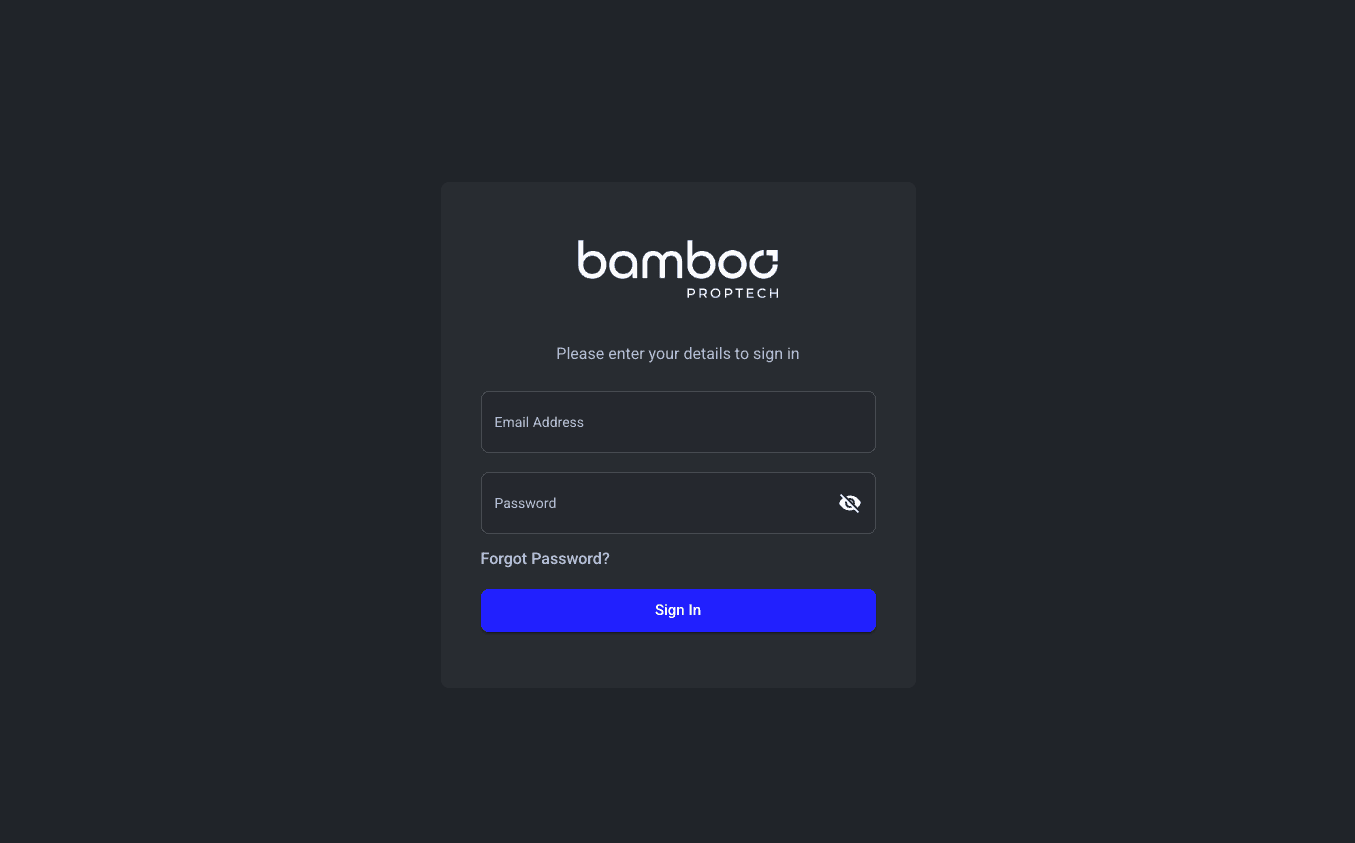
To access the Bamboo dashboard, visit your organisation's dashboard URL (e.g. dashboard.bambooproptech.com) and sign in with your email and password.
If you've forgotten your password, use the Forgot Password link on the login page to reset it.
First-Time Login
When logging in for the first time, you may be asked to verify your account. Follow the on-screen prompts to complete the verification process before gaining full access to the dashboard.
Navigating the Dashboard
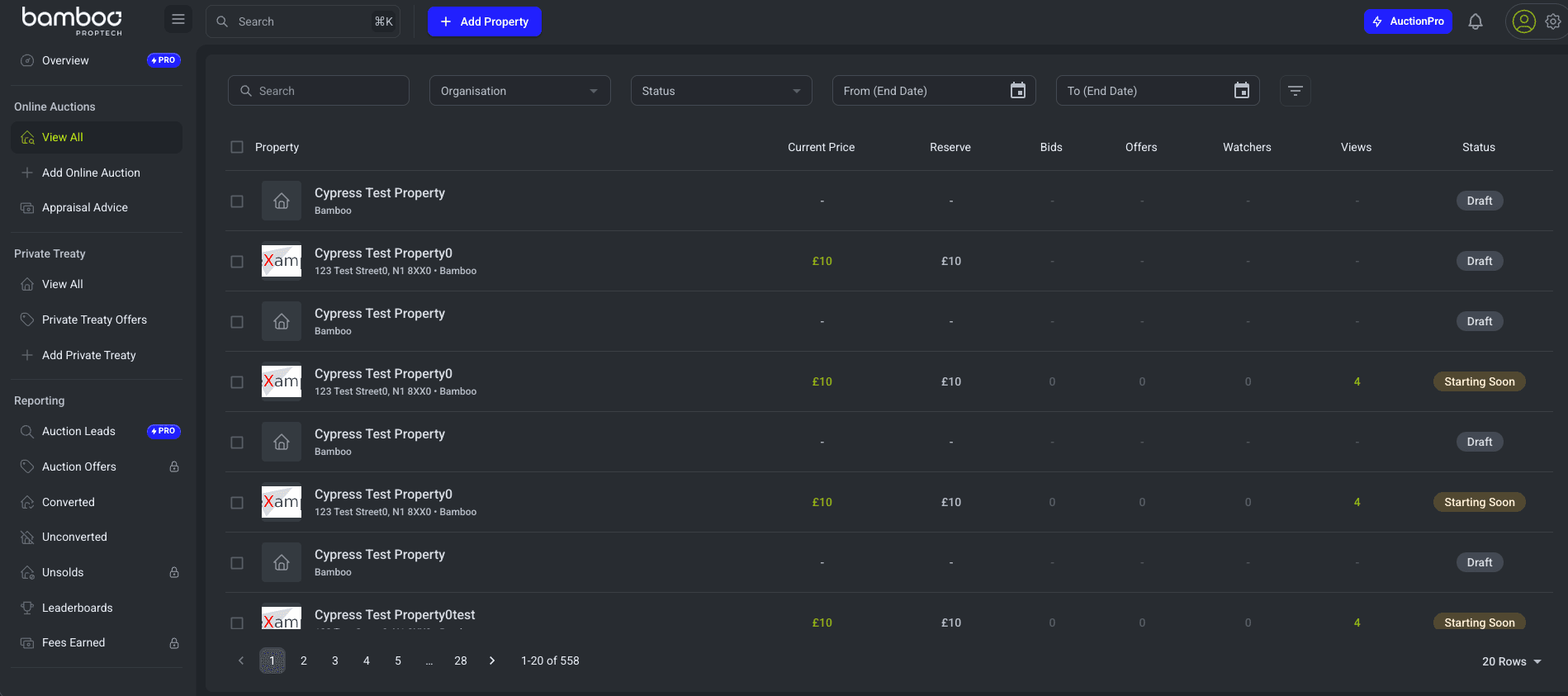
The Bamboo dashboard uses a sidebar menu on the left-hand side for navigation. The menu is organised into the following sections:
Overview
The Overview page is your home screen. It provides a snapshot of your current activity, including:
- Live Properties - Properties currently active in auction, with real-time bid and watcher counts.
- Statistics Cards - Key metrics such as total properties, active auctions, fees earned, and conversion rates.
- Activity Feed - A real-time feed of events such as new bids, registrations, and property status changes.
- Performance Graphs - Visual charts showing trends across your listings.
You can filter the overview by region and branch using the filters at the top of the page.
Online Auctions
The Online Auctions section is where you manage auction properties. From here you can:
- View All properties with their current status, bid counts, reserve prices, and end dates.
- Add a new online auction property.
- Search and filter properties by status, organisation, branch, and date range.
- Appraisal Advice - Access guidance and recommendations to support property valuations ahead of auction.
Private Treaty
If your organisation has the Private Treaty feature enabled, this section allows you to manage properties sold through traditional negotiation rather than auction.
Reporting
Access reports including leaderboards and auction leads. Some reports are only available to specific organisations or internal Bamboo staff. See the Reporting guide for more detail.
Integrations
Connect external CRM systems such as Reapit, Street, or Alto to import properties directly into Bamboo. See the Integrations overview for more detail.
Customers
View and manage buyers who have registered on your platform.
Settings
Manage your personal profile, change your password, view invoices, and access organisation settings.
Understanding Property Statuses
Properties in Bamboo progress through several statuses:
| Status | Description |
|---|---|
| Draft | Property has been created but not yet published. |
| Pending | Property is scheduled and awaiting the auction start time. |
| Active | The auction is live and accepting bids. |
| Under Offer | Bidding has ended and the property is in the post-auction process. |
| Sold | The sale has completed successfully. |
| Unconverted | A winning bidder was found but the sale did not complete after auction (e.g. buyer financing fell through or buyer withdrew during the reservation period). |
| Unsold | The property did not meet its reserve price. |
Getting Help
If you need assistance at any point, email us at hello@bambooproptech.com. Your account manager is also available to help with any questions about using the platform.